Explanation:
If you have already integrated Cash App Afterpay as a payment method but it is not appearing on your checkout page, this could be due to the following reasons:
Inconsistent Currency Display:
A common cause for Cash App Afterpay not appearing at checkout is the use of a non-local currency as the base currency on your Shopify store. If your store currency is not set to USD, it may result in a “currency not supported by this merchant” error for customers.
To resolve this, ensure that your store's currency aligns with Cash App Afterpay’s supported currency, USD.
For more information, please refer to our Cross Border Trade documentation.
Configuration Issues:
There may be configuration issues within your payment settings. Ensuring that Cash App Afterpay is correctly set up and enabled in your payment settings can resolve this issue.
If you are receiving the “merchant is not integrated correctly” error message during checkout, we recommend reconfiguring the Afterpay US (New) Payment option within the Shopify settings.
Action:
Please follow the instructions below to re-configure:
Log in to Shopify
Enter Shopify Store and access your Store Settings
Click Payments
Scroll down to the Cash App Afterpay Payment Method Afterpay US (New))
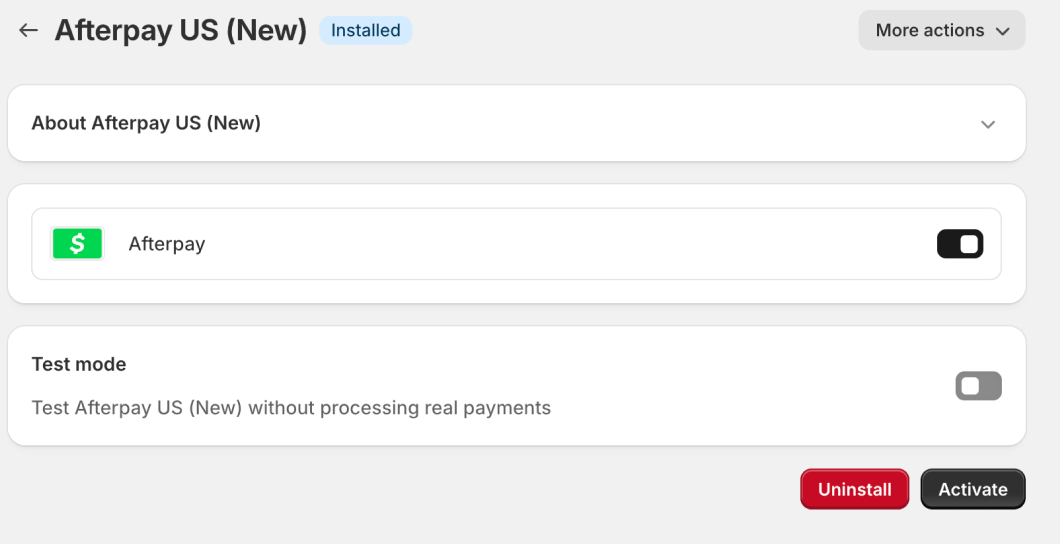
You will see the page below:
Click “Activate”
Do not enable Test Mode
You will be prompted with the Afterpay Business Hub login. Enter your login credentials and select the correct business you want Afterpay enabled on.